
Quick summary (30 sec)
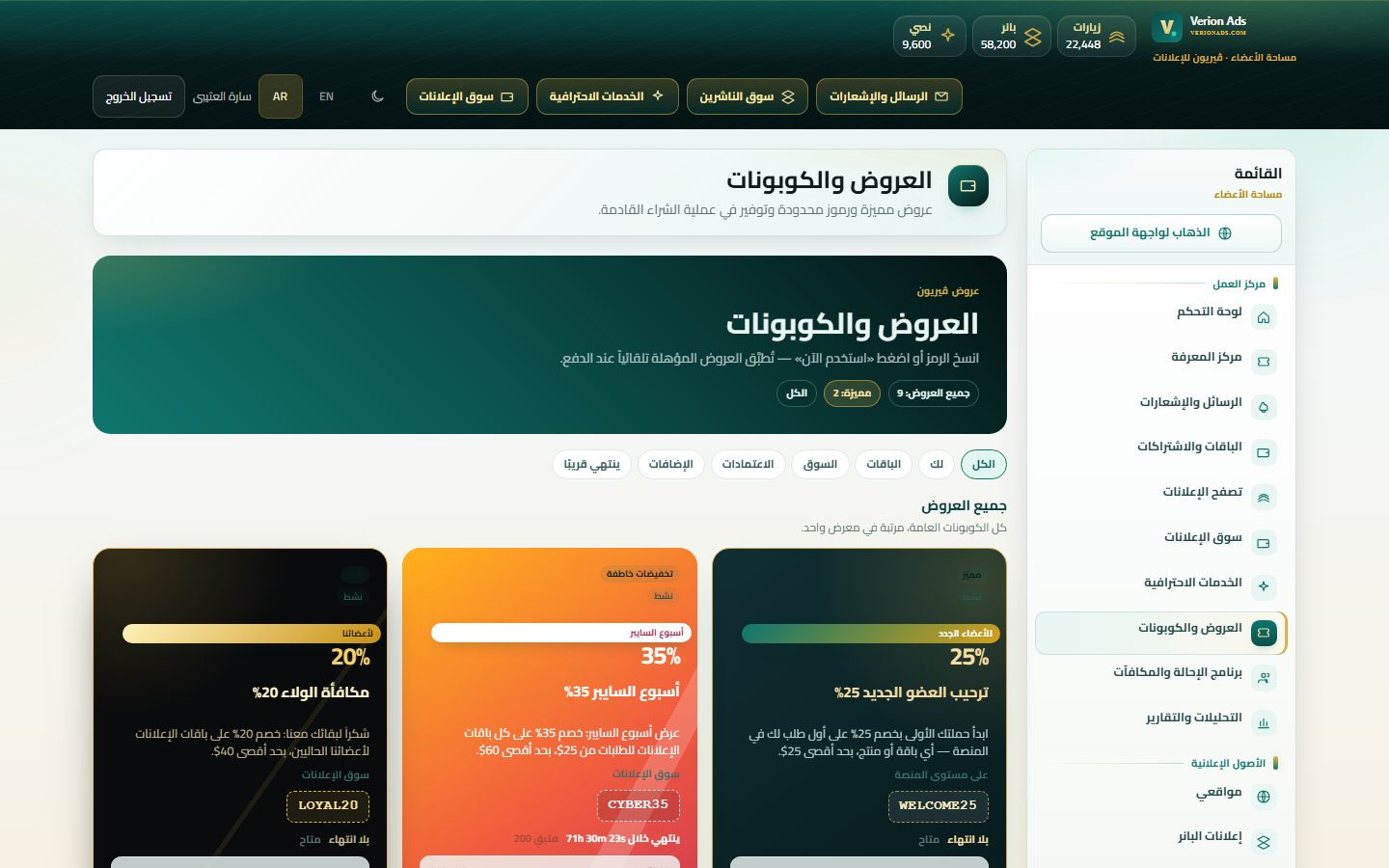
The Offers & Coupons page lists every coupon available to you. Copy a code, then apply it on the checkout page before you pay — one coupon per order.
What is it?
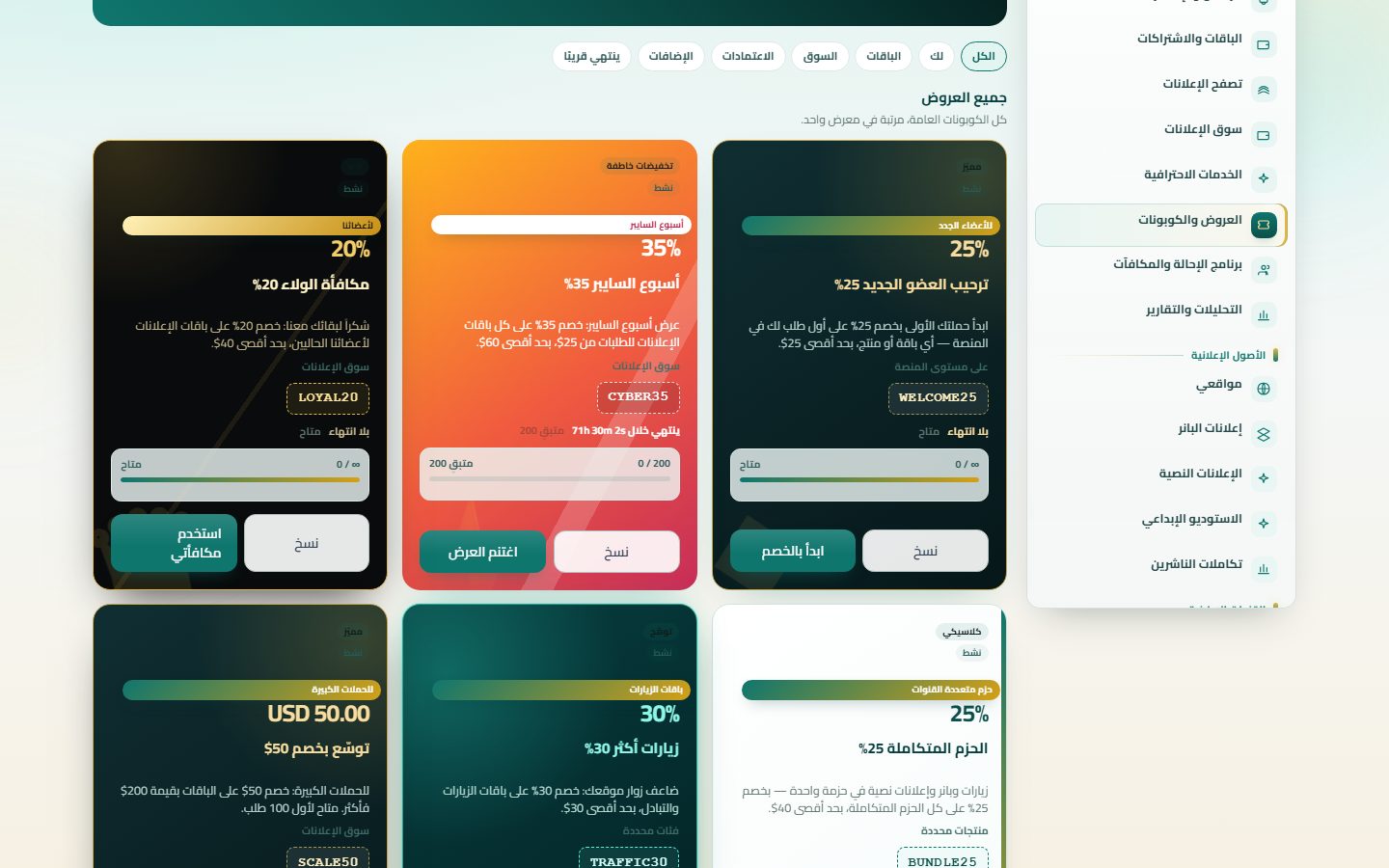
The Offers & Coupons page in the member area shows the public and featured coupons you can use: the discount (a percentage or a USD amount), what it covers (the ad marketplace, platform plans, a category or specific products, or the whole platform), the maximum discount and minimum order, the remaining uses and the end date.
Why use it?
You pay less for the same package. The discount is calculated before payment and appears as its own line in the order summary and on the invoice.
Step-by-step
- Open Offers & Coupons from the side menu.
- Filter with the tabs: All, For you, Plans, Marketplace, Credits, Add-ons, Ending soon.
- Read the card: what the coupon covers, the minimum order, the maximum discount and the end date.
- Press Copy to copy the coupon code.
- Open the Ad Marketplace, pick a package and press Buy now to reach the checkout page.
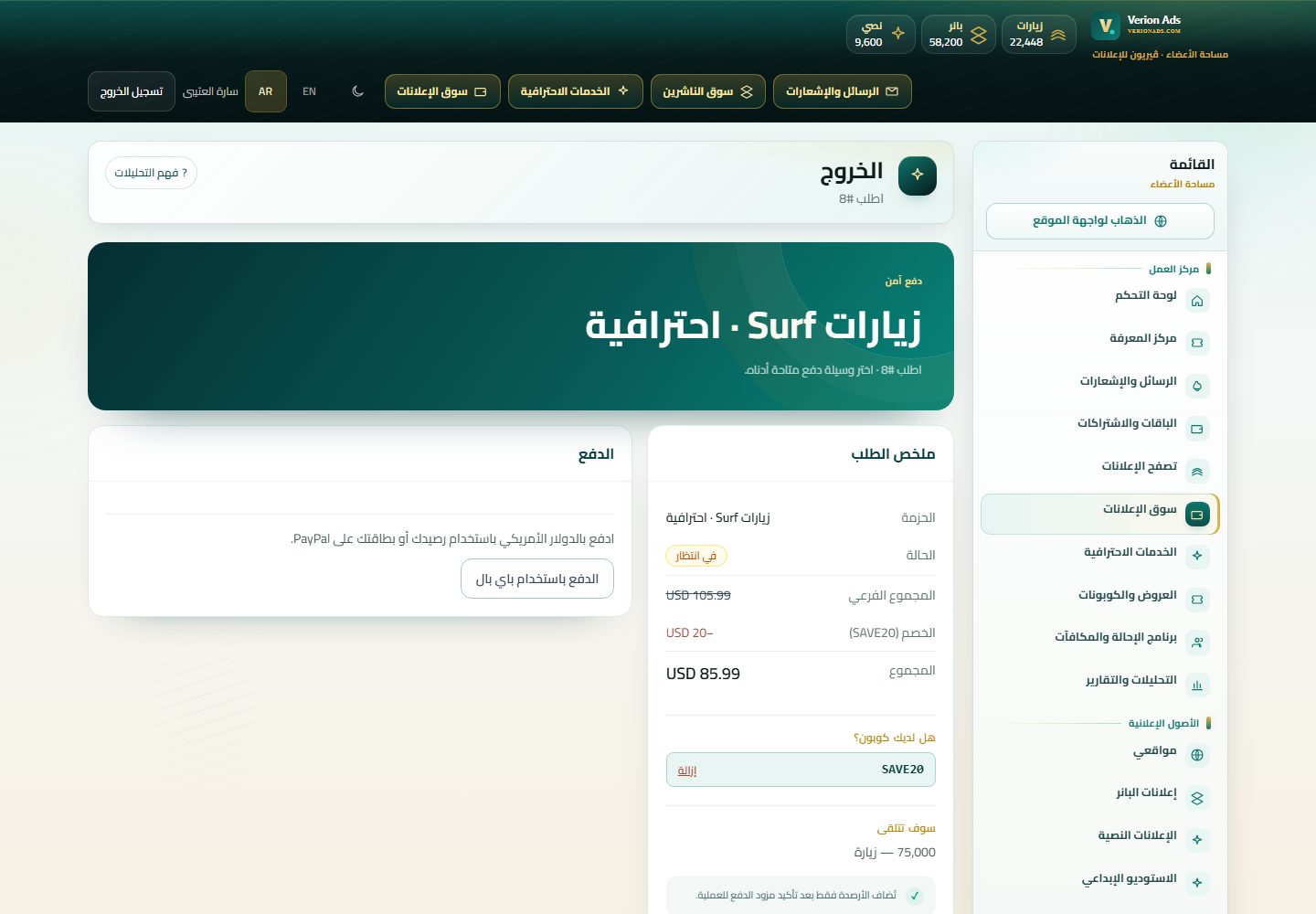
- In “Have a coupon?” paste the code and press Apply. A Discount line appears and the total updates.
- Pay with one of the available methods. To change the coupon before paying, press Remove and apply another one.
Screen options explained
- The badge at the top: the offer type, such as “New members” or “Cyber Week”.
- The large value: a percentage (e.g. 25%) or a fixed amount (e.g. 20.00 USD).
- The scope line: Ad Marketplace, Plans & subscriptions, Specific products or Platform-wide.
- The code in the dashed box, with the Copy button below it.
- The usage bar: how many of the total uses are taken, and “No expiry” or an “Ends in” countdown.
Best practices
- One coupon per order and coupons do not stack — pick the one worth most for your order.
- Check the maximum discount: a 35% coupon capped at $60 gives only $60 on large orders.
- Opening an offer link like /promo/CODE saves the code and applies it automatically at checkout if you qualify.
Common mistakes
- Trying to add a coupon after paying: a paid order cannot take a coupon.
- Using an Ad Marketplace coupon on a platform plan subscription, or the reverse.
- Ignoring the minimum order shown on the card.
Interactive examples
A coupon like WELCOME25 works on your first paid order only. After your first successful payment it is not accepted again.
A coupon like SAVE20 takes $20 off orders of $100 or more. On a 105.99 order the total becomes 85.99.
A coupon like NY2027 can be listed before its start date but only works from then. Offers change — always go by what the page shows now.
FAQ
Does a coupon work with every payment method?
Yes. The discount applies to the order total before you choose how to pay.
What happens to the discount if the order is refunded?
A refund is based on what you actually paid after the discount.
Troubleshooting
“This coupon code was not found.”
Check the spelling, or use the Copy button on the Offers page.
“Not available yet” or “has expired”
The coupon is scheduled for later or its offer ended. Check the start and end dates on the card.
“Does not meet the minimum amount”
Choose a larger package that reaches the minimum shown on the card.
“Does not apply to this purchase type” or “cannot be used with the selected product”
The coupon is for another scope (plans, the traffic category or specific bundles). Read the scope line on the card.
“Only for your first purchase” or “not eligible”
Some coupons are for new members only; some are for members registered at least 14 days ago.
“Used the maximum number of times” or “reached its usage limit”
Your allowed uses, or the offer’s total uses, are taken. Try another offer from the page.
“The amount would be under 1.00”
Card payments cannot be under 1.00, so the coupon is not accepted on this order.
Was this helpful?