
Quick summary (30 sec)
Prices are in US dollars. Pick a package in the Ad Marketplace, review the order summary and apply your coupon, then pay with an available method. Credits are added only after payment is confirmed.
What is it?
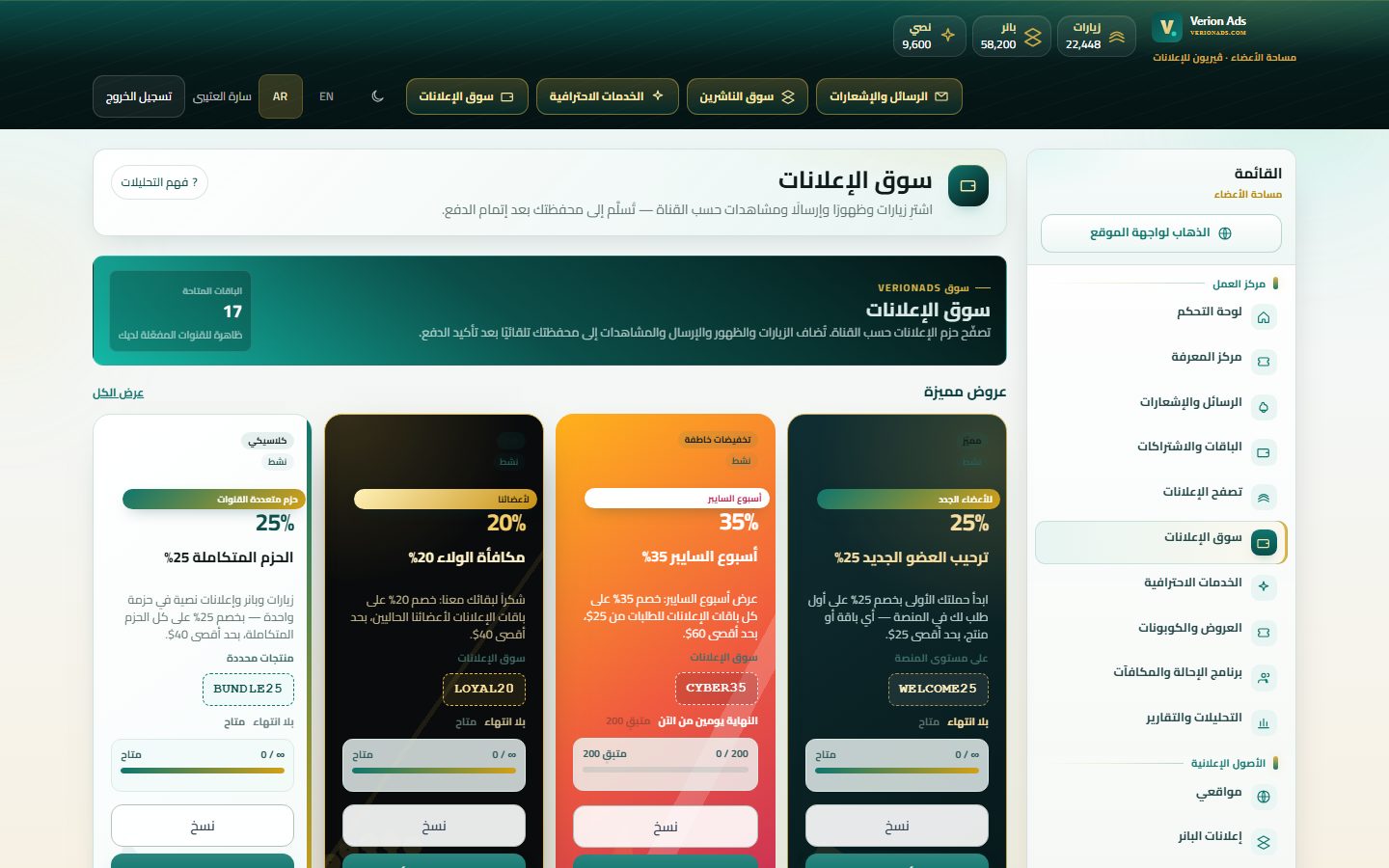
The Ad Marketplace is where you buy visits, impressions, sends and views for each channel. Every price is shown and charged in US dollars (USD). Pressing Buy now creates and saves an order, then opens the Secure checkout page.
Step-by-step
- Open the Ad Marketplace from the menu. Use search, sorting and channel categories to find a package.
- Press Buy now on the package. The order is saved even if you do not pay right away.
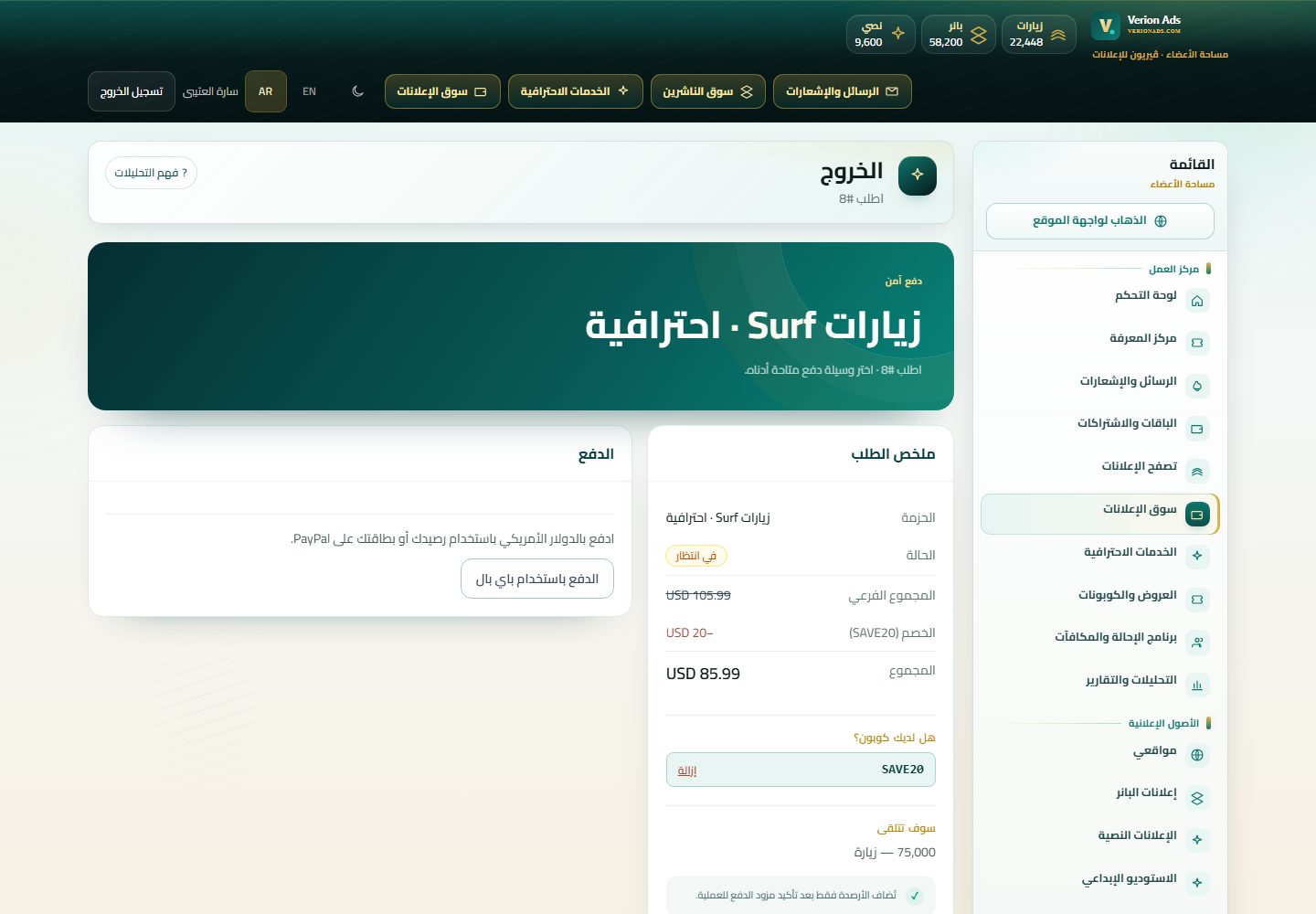
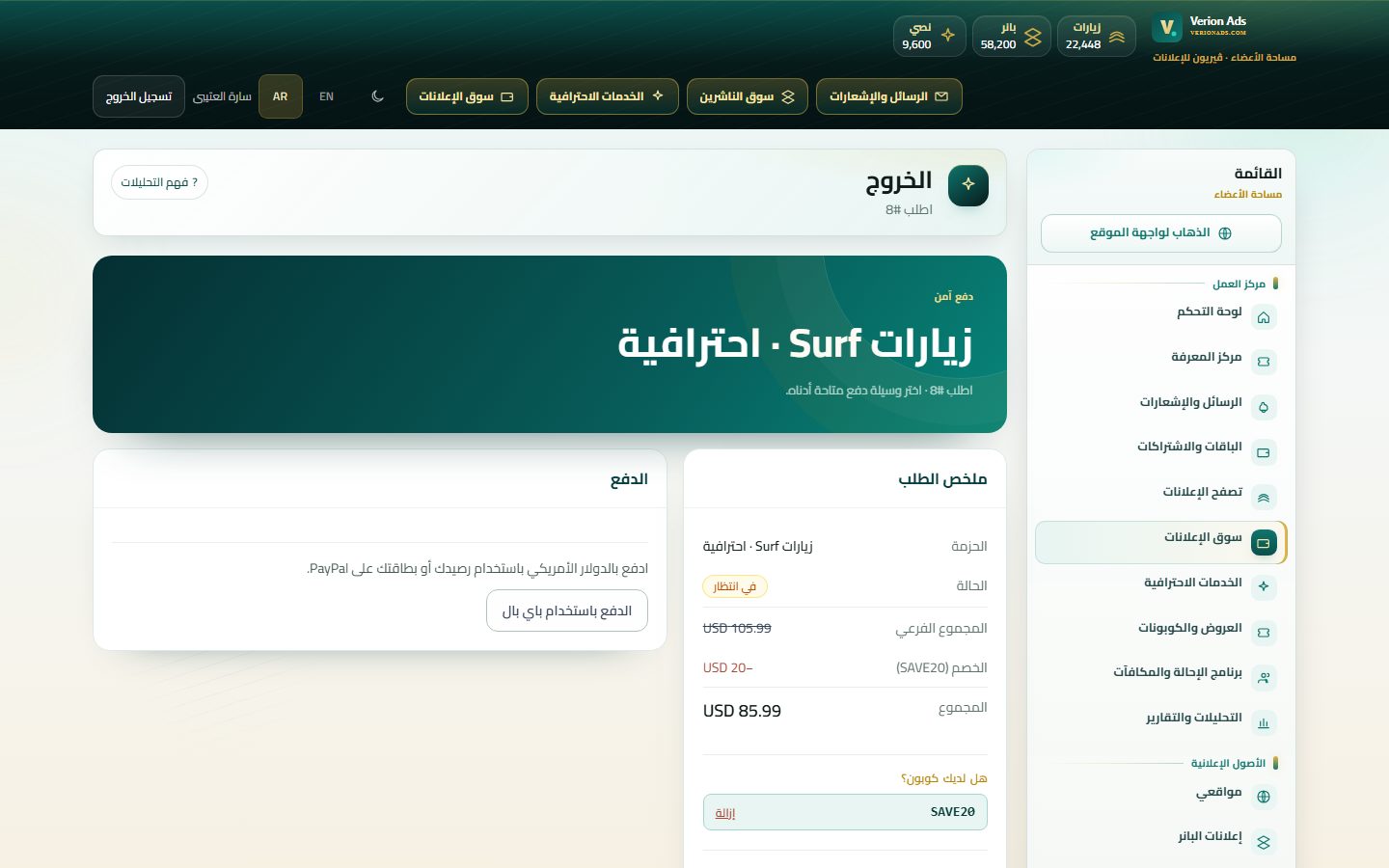
- In the Order summary check the package, status, subtotal and total, and what you will receive (e.g. 75,000 visits).
- If you have a coupon, type it in “Have a coupon?” and press Apply.
- Choose a payment method in the Payment column and complete it.
- Once the payment provider confirms, the order becomes Paid, the credits land in your wallet and a View invoice button appears.
- To return to an unpaid order: in Recent Purchases under the marketplace, press Pay.
Screen options explained
- Card: Visa, Mastercard and mada through Moyasar, plus Apple Pay when enabled — the card form appears on the page.
- PayPal: pay in USD from your PayPal balance or card; you go to PayPal and come back to the platform.
- Tuwaiq Pay (when enabled): cards, mada, Apple Pay and STC Pay; it needs a Saudi mobile number in your profile.
- Bank / wallet transfer (e.g. STC Bank or urpay): send the exact amount, then upload an image or PDF of the receipt (up to 5 MB). Credits arrive after admin review.
- Only the methods that are enabled and accept your order amount and currency are shown.
Best practices
- Open Offers & Coupons before paying to look for a discount.
- For bank transfers send the exact amount and upload a clear receipt to speed up the review.
- Save the invoice as PDF from View invoice for your records.
Security & fraud controls
- Card details are entered in the payment provider’s form and are not stored by the platform.
- Credits are added only after the payment provider confirms the transaction on its side.
Troubleshooting
No payment method is shown
Your order is saved. Try later or contact support — methods may be paused for a while.
I paid but the credits are not there
Wait a few minutes for the provider’s confirmation, then refresh. If the order is still pending, open a support ticket with the order number.
Tuwaiq Pay asks for a mobile number
Add your Saudi mobile number to your profile, then return to checkout.
I uploaded a transfer receipt
You will see “Your proof is under review”. Credits are added after approval, and you can replace the receipt if you uploaded the wrong file.
Was this helpful?